
How To Setup 301 Redirects In cPanel

The HTTP response status code 301 Moved Permanently is used for permanent URL redirection, meaning current links or records using the URL that the response is received for should be updated. The new URL should be provided in the Location field included with the response.


cPanel makes it easy to setup these redirects. In this tutorial, we’re going to show you how to setup 301 redirects in cPanel.

STEP 1: Login to the Client Area

STEP 2: Access cPanel in your account


STEP 3: Once in to the cPanel interface, scroll down to Domains and click Redirects


STEP 4: On the Redirects page, we're going going to setup our redirect. In this example, we're going to redirect alttrixcloud-test2.com to alttrixcloud-test.com.
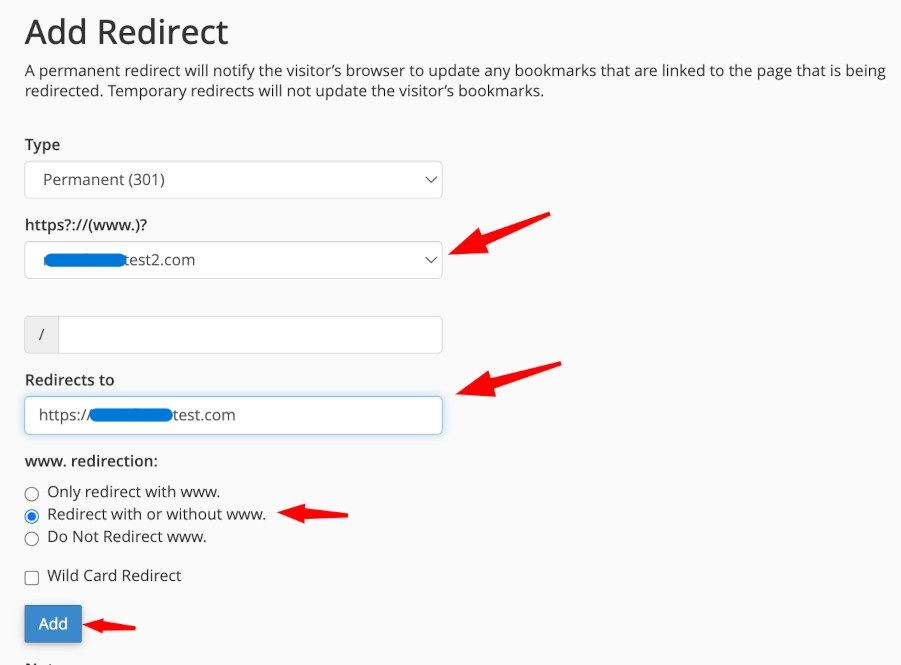


STEP 5: Click the blue Add button after you have entered the information and your redirect has been created.

  • 0 Usuários acharam útil
Esta resposta lhe foi útil?

Artigos Relacionados

How To Add An Addon Domain In cPanel

Setting Up Addon Domains in cPanel The quick and short answer is:   Log into cPanel on the...

How To Fix The "Your IP Address Has Changed" Error In cPanel

If you've ever tried to log into cPanel and gotten the "Your IP address has changed" error it can...

How To Disable Mod Security

Have you ever tried to make a post in WordPress, Xenforo, or some other content management system...

How To Forward A Domain To Another Domain

One thing we encourage here at alttrixcloud is that you register multiple TLDs for your brand....

How To Correctly 301 Redirect Your Domain

Ever decide to pickup and move your website to a new domain?   What about buying a similar...